
AI Restore Studio
Restore exactly what you mark.
Draw around a coffee stain, a torn corner, a faded paragraph or a single word. Tell the AI what it needs. Recovoly restores that area - and only that area. Every pixel outside your marks stays the original.
Coffee ring
Restored · text kept
Spring → Autumn
Same typeface & ink
Torn corner
Paper & text rebuilt
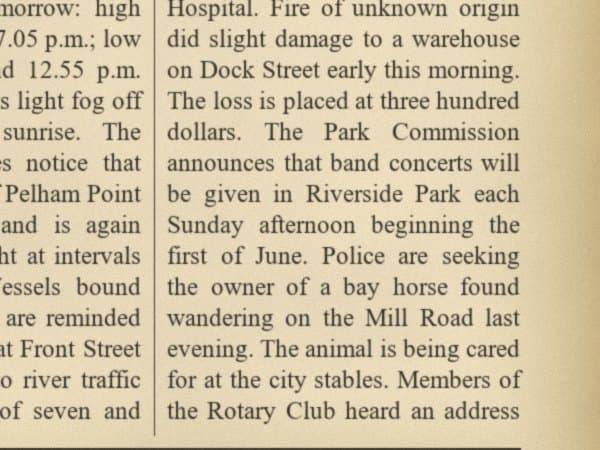
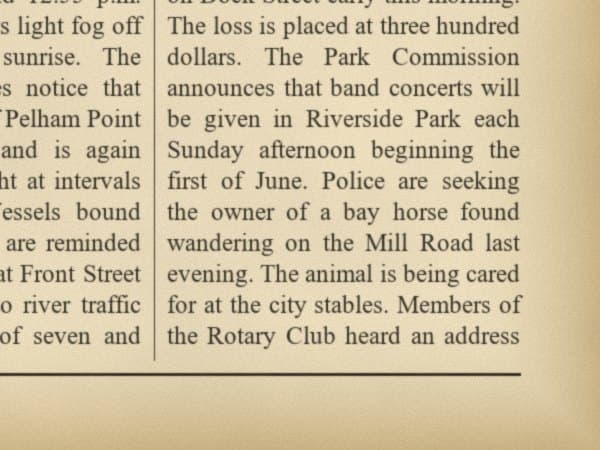
Demo on a sample 1924-style newspaper page with a coffee ring, water tide-line, foxing, a fold crease, faded ink, an ink blot, a library stamp, a pencil note, a punched hole and a torn corner.
0
pixels changed outside your marks
9
area types, from stains to signatures
4
ways to mark: box, ellipse, lasso, brush
12
areas per page, restored one by one
One filter for the whole page was never the answer
Old documents are damaged in places, not everywhere. A stain needs lifting, a corner needs rebuilding, a word needs changing - and the rest of the page should be left alone.
Whole-page filters
Everything changes at once
- ×Clean paper gets bleached along with the stain
- ×Sharp text gets over-processed next to the faded text
- ×Photos, seals and signatures are treated like damage
- ×You cannot say what a specific spot needs
- ×Hard to prove what was and wasn't altered
AI Restore Studio
Only what you mark changes
- Each area is restored on its own, with its own instruction
- The AI sees the whole page, so repairs match the paper and fonts
- Pixels outside your marks are never touched
- Strength per area: gentle, balanced or rebuild
- Every marked area is listed, so you know exactly what changed
Ten kinds of damage. One page. Fixed in place.
Drag the handle across the newspaper. Every change on the right was made inside a marked area - the halftone photo, the masthead and the clean columns are the original.
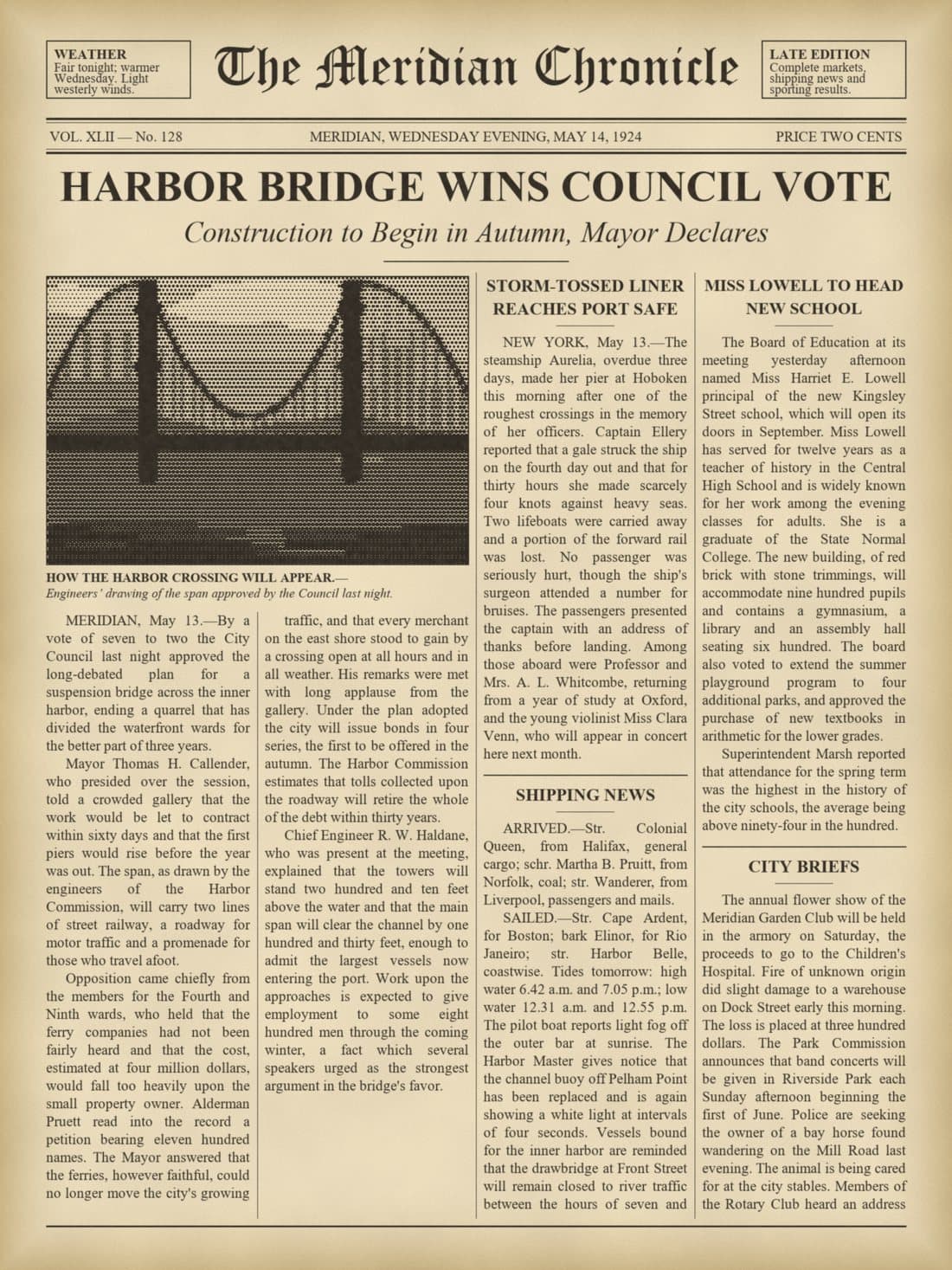
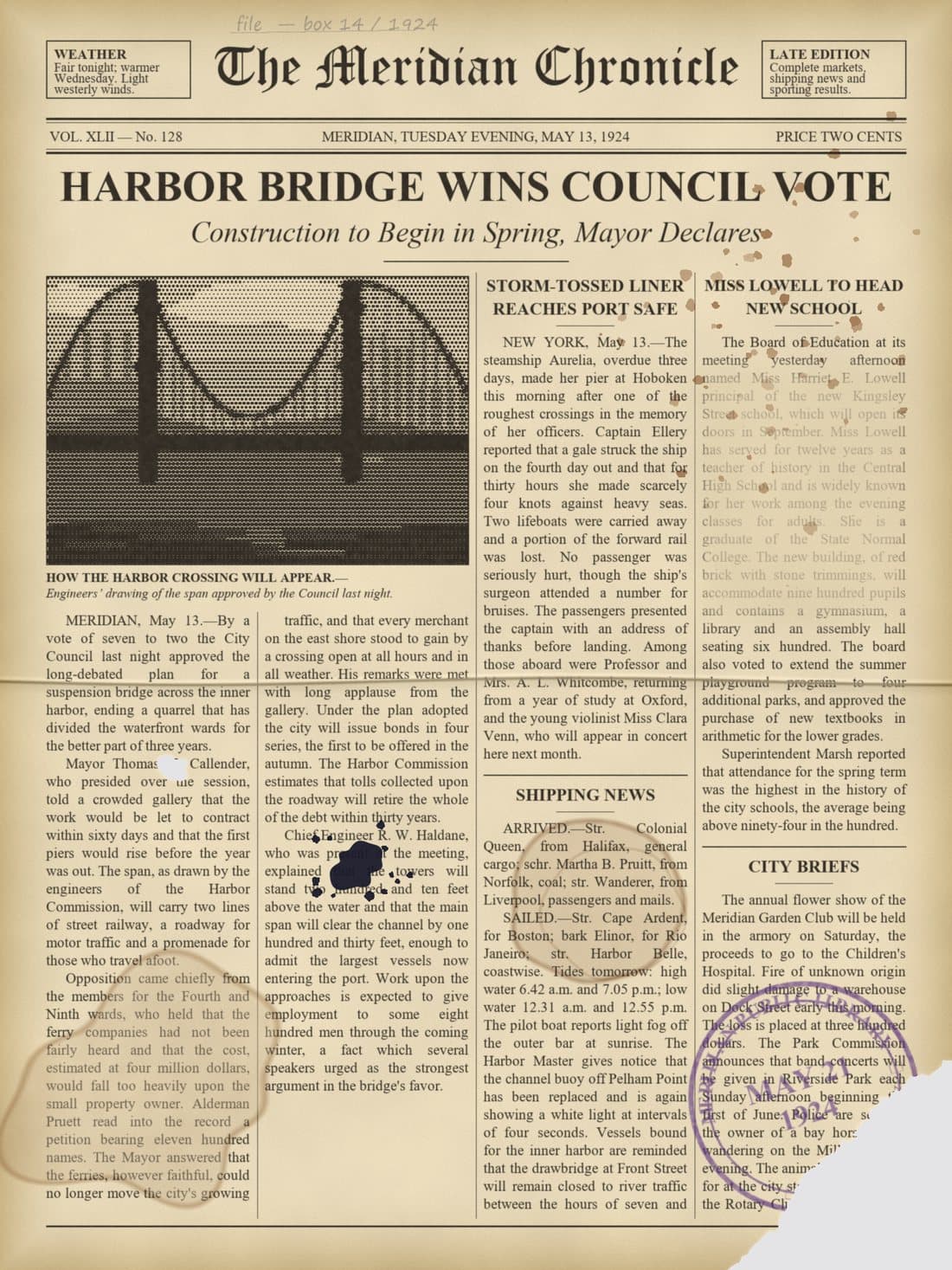
Pick a damaged area
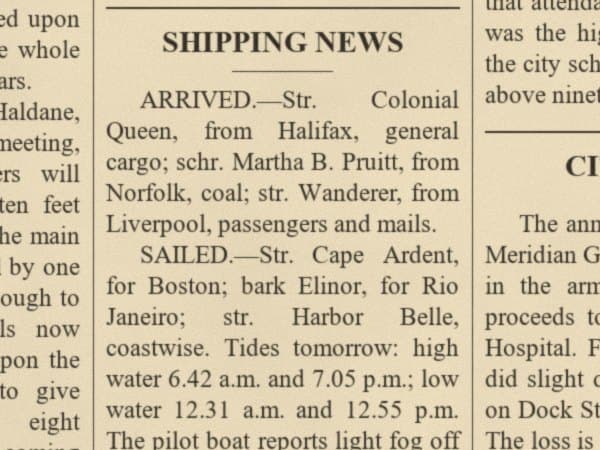
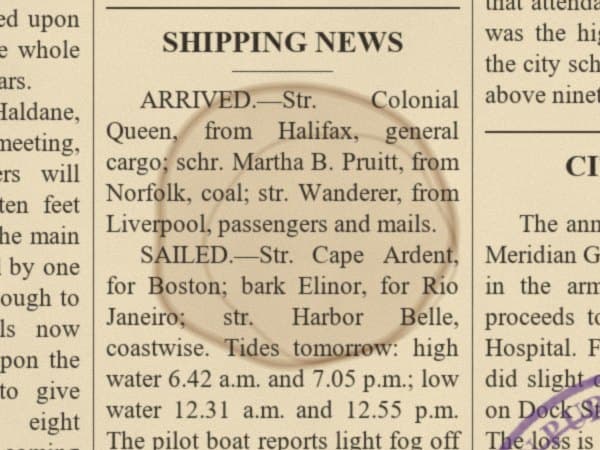
Coffee ring
RestoreRemove stainA dark rim and a tan fill sitting right over a column of type. The stain is lifted and every letter underneath is kept.
Four steps from damaged to done
No settings to learn. Mark it, say what it needs, press restore.
Upload a page or a PDF
Drop in a scan or a photo - JPG, PNG, TIFF, HEIC, WebP and more - or a multi-page PDF. Every page opens upright and ready to edit.
Mark what needs work
Draw around each problem, or press Auto-detect and let the studio find text lines, stamps, signatures, photos and damage.
Say what each area needs
Pick an area type, tap a quick instruction or write your own, choose a strength and attach reference images if you have them.
Restore and export
Areas are restored one at a time, each on top of the last. Compare before and after, then export PNG, JPG or PDF or save to your assets.
Mark it. Describe it. Restored.
Draw the shape that fits the damage - an ellipse round a coffee ring, a lasso along a water tide-line, a brush stroke over an ink blot. Tap a quick instruction or write your own, and each area is restored on its own, on top of the one before.
Rectangle
Quick boxes for lines of text, stamps and columns.
Ellipse
Round stains, seals and coffee rings.
Lasso
Freehand outlines for tide-lines and torn edges.
Brush
Paint over blots and scribbles - with an eraser for clean edges.
Auto-detect
Finds text, stamps, seals, signatures, photos and damage for you.
Change the words. Keep the typeface.
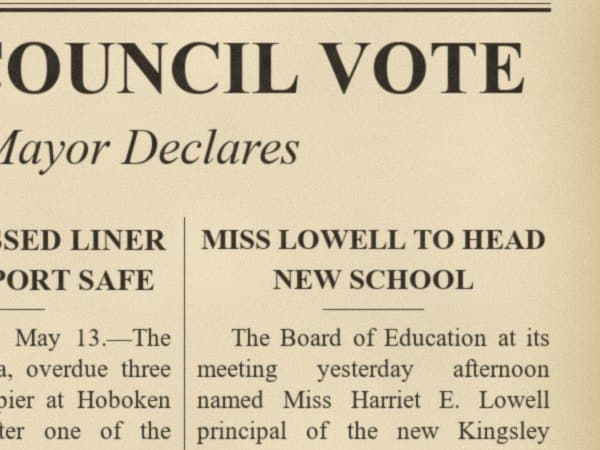
Mark a line and the studio reads it for you. Pick the words to replace, type the new ones, and they are written back in the original font, size and ink tone - on the same paper grain. Fix a misprinted date, correct a name or repair broken letters without retyping the page.
- Reads the existing text - no retyping
- Select one word or a whole phrase
- Matches typeface, weight, size and spacing
- Matches ink tone, print texture and paper

Selected
Spring,
Typed
Autumn,
Result
Construction to Begin in Autumn, Mayor Declares
Tell each area exactly what it is
Each type comes with one-tap quick instructions, or describe the fix in your own words.
Restore
Repair stains, tears, holes, folds and foxing while keeping the text underneath.
Text
Make faded words crisp, fix broken letters - or change the words in the original font.
Stamp / Seal
Rebuild a faded or broken seal, exactly like a reference image if you attach one.
Signature
Strengthen faded strokes and reconnect broken lines without redrawing the hand.
Remove
Take out anything that should not be there and rebuild what it covered.
Inpaint
Paint over an area and it is erased and filled in from its surroundings.
Photo
Clean scratches, dust and fading from photographs printed on or pasted into the page.
Colorize
Bring natural colour to a black-and-white photo - subtle, or restored to how it was.
Custom
Describe exactly what should happen in the area, in your own words.
How much should change?
Every area gets its own strength, so a fragile signature and a missing corner can sit on the same page.
Fixes fully, keeps an authentic look
The default. Damage is removed completely while paper tone, grain and ink weight are matched to the rest of the page, so the area still looks like part of the original.
Change applied inside the mark
Show it what the original looked like
Attach up to four reference images to any area. A clean copy of the same seal from another page, the letterhead from a sister document, a photo of the original stamp - the AI uses them as the model for the damaged area.
Pixels outside your marks never change
Every area goes through the same five steps. The last one is the reason you can trust the result.
Crop with context
The area is cut out with enough of the page around it for the AI to see the paper, the ink and the fonts it must match.
Mask the exact shape
A black-and-white mask of what you drew - box, ellipse, lasso or brush - tells the AI precisely where it may work.
Restore with the page in view
The AI gets the crop, the mask, a whole-page view and your reference images, so the repair fits the document, not just the patch.
Align and colour-match
The result is aligned to the crop and its colour is matched to the untouched surroundings, so there are no tone seams.
Blend back, nothing else
It is blended in through a feathered mask of your shape. Everything outside the mark is the original file, pixel for pixel.
Auto-detect built in
Find text, stamps, signatures, photos and damage in one click.
Export at full size
Save finished pages as PNG, JPG or PDF, or keep them in your Recovoly assets.
Restore again, any time
Areas build on each other, and you can compare every result with the original.
Everything around the restore, too
The studio handles the rest of the job, so a restored page is ready to share or archive.
Multi-page PDFs
- Every page in a page dock
- Reorder, add or remove pages
- Restored pages are flagged
- Save the whole document as one PDF
Free page adjustments
- Brightness, contrast, shadows, highlights
- Whiten paper and deepen ink
- Warmth, tint, saturation, sharpen, denoise
- Colour, gray, black & white or sepia
Compare & export
- Side-by-side and zoomed compare
- Rotate pages in 90° steps
- Export PNG, JPG or PDF at full size
- Save to your Recovoly assets
For every document that matters
From one family letter to a museum's front pages - restore the part that's damaged and keep the rest exactly as it is.
Newspapers & clippings
Lift foxing and fold lines from old front pages and clippings without flattening the halftone photos.
Letters & diaries
Remove water stains and ink blots from family letters, then sharpen the faded passages that matter.
Certificates
Rebuild a damaged seal from a reference, strengthen signatures and repair the tears along old folds.
Legal & land records
Restore only the stained clause or the faded entry - the rest of the record is left exactly as filed.
Books & manuscripts
Fill punched holes, rebuild missing corners and clear library stamps from pages and plates.
Photos in documents
Clean scratches from photos on ID cards, yearbooks and newspapers, or colorize them naturally.
Archives & museums
Work area by area on masters you cannot afford to over-process, and keep a record of every change.
Multi-page files
Restore the pages that need it in a long PDF and save the whole document back as one file.
Questions about the AI Restore Studio
It is Recovoly's area-by-area restoration editor. Instead of running one filter over the whole page, you mark the exact areas that need work - a coffee ring, a torn corner, a faded paragraph, a stamp, a line of text - and tell the AI what each one needs. Each area is restored on its own, and nothing outside your marks is changed.
No. Every area is cropped with enough surrounding context for the AI to match the paper, ink and fonts, then the result is aligned, colour-matched to the untouched surroundings and blended back through a feathered mask of the exact shape you drew. Pixels outside the marked areas are never changed.
Use the rectangle, ellipse, freehand lasso or brush tools (the brush has an eraser for fine edges), or press Auto-detect to find text lines, stamps, seals, signatures, photos and damage for you. You can move, resize or delete any mark before restoring. A page can hold up to 12 marked areas at a time.
Yes. Mark a line of text and the studio reads it for you. Pick the words you want to change, type the new ones and the AI rewrites them in the original typeface, size and ink tone, on the same paper grain. It is ideal for fixing misprints, correcting dates or repairing broken letters.
Coffee and tea stains, water tide-lines, foxing spots, fold and crease lines, faded or lifted ink, ink blots, pencil notes, library and rubber stamps, tape marks, punched holes, tears and missing corners. Each area type comes with one-tap quick instructions such as 'Remove stain', 'Fill hole / tear' or 'Sharpen faded ink'.
Restore, Text, Stamp / Seal, Signature, Remove, Inpaint, Photo, Colorize and Custom. Restore repairs damage, Text sharpens or changes words, Stamp / Seal rebuilds seals (optionally from a reference image), Signature strengthens faded strokes, Remove erases unwanted marks, Inpaint fills a painted area from its surroundings, Photo and Colorize work on pictures inside the page, and Custom follows any instruction you write.
They set how strongly each area is changed. Gentle makes the smallest change and keeps the aged character, Balanced fixes the damage fully while keeping an authentic look, and Rebuild reconstructs the area as new.
Yes. Each area accepts up to four reference images. This is the best way to rebuild a stamp, seal or logo exactly - attach a clean copy from another page and the AI uses it as the model for the damaged one.
Yes. Upload a PDF and every page opens in the page dock. You can reorder, add or remove pages in the page organizer, restore any page, and save the whole document back as one PDF with the latest version of every page.
JPG, PNG, WebP, TIFF, AVIF, GIF, SVG, HEIC and HEIF are opened directly, and BMP, ICO and other browser-readable formats are converted automatically. PDFs are supported page by page. Finished pages export as PNG, JPG or PDF.
Yes. The adjust panel offers brightness, contrast, shadows, highlights, whiten paper, deepen ink, saturation, warmth, tint, sharpen and denoise, plus colour, gray, black & white and sepia modes. Adjustments are free and can be combined with area restoration.
Restore the damage. Keep the original.
Open the studio, mark what needs work and see the result in minutes.