
Selective Document Restoration
Fix only the damage.
Draw around a coffee ring, a water stain, an ink blot, a stamp or a torn corner. Tell the AI what it needs, and Recovoly repairs that area alone - the rest of your document stays exactly as it was scanned.
Demo on a sample 1924-style newspaper page. Five areas are marked with four different tools and restored one at a time.
4
marking tools plus auto-detect
12
areas per page, restored one by one
3
strengths: gentle, balanced, rebuild
0
pixels changed outside your marks
Pick the shape that fits the damage
Each example is marked and then restored in turn - pick one to jump to it. Only the inside of the mark changes.
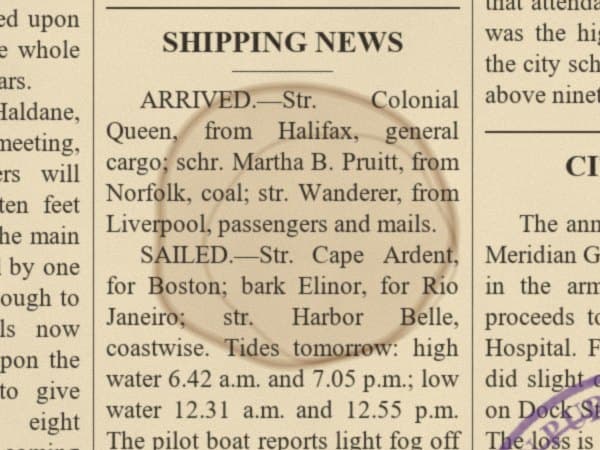 Marked with ellipse
Every kind of damage, fixed where it is
Real close-ups from the demo page. Hover or tap a card to see the restored area - the words underneath each stain are still there.
Restore, Remove or Inpaint?
Each marked area gets a type. It tells the AI whether to keep what is under the damage or take the mark away completely.
Restore
The damage sits on top of something worth keeping.
- Coffee, tea and water stains
- Foxing and age spots
- Fold lines and creases
- Holes, tears and missing corners
Keeps the text and paper underneath
Remove
Something should not be there at all.
- Pencil and pen notes
- Ink blots and scribbles
- Library and rubber stamps
- Tape marks and hole punches
Erases it and rebuilds what it covered
Inpaint
A small blemish on plain paper.
- Dust and specks
- Small marks in margins
- Pin holes
- Isolated spots
Fills from the surroundings - no instruction needed
Custom
You know exactly what you want.
- Rebuild the border pattern
- Remove the shadow of the clip
- Even out this faded band
- Anything you can describe
Follows your own words
One clear sentence per area
Tap a quick instruction - Remove stain, Fill hole / tear, Sharpen faded ink, Remove foxing spots, Fix fold line - or write your own. Say what should go and what should stay, and the AI works only inside your mark.
Why not just filter the whole page?
Whole-page enhancement treats every pixel the same. Old documents rarely need that.
Most restoration tools run one filter across the entire scan - brighten, sharpen, denoise, whiten. That works on a page that is evenly faded, but most damage is local: a single coffee ring, one torn corner, a stamp across two lines. A global filter has to be strong enough for the worst spot, so it also changes everything that was fine.
The side effects are easy to miss until you compare. Paper loses its natural tone, pencil notes and light handwriting fade further, signatures thin out, and sharpening adds halos around the print. On a family letter or an archive record, those changes matter.
Selective restoration turns this around. You decide where the damage is, and only those areas are rebuilt. Everything else stays exactly as it was scanned, so the page keeps its age, its character and its value as a record.
Need both? Use the whole-page adjustments for overall brightness and contrast first, then fix the remaining spots area by area.
As light or as complete as you need
A fragile signature and a missing corner can sit on the same page. Give each area the strength it needs.
Gentle
Smallest change, keeps the aged character. Best for archive masters, fragile signatures and anything that should still look its age.
Balanced
DefaultFixes fully, keeps an authentic look. The default for stains, blots and stamps - damage gone, paper and ink still matched to the page.
Rebuild
Reconstructs the area as new. For missing corners, holes through text and badly broken areas that need to be rebuilt from the page around them.
No patches, no seams
Each repaired area is aligned to the page, colour-matched to the untouched paper around it and blended back through a feathered edge that follows the exact shape you drew. Outside that edge the file is the original scan, pixel for pixel.
- Works with the whole page in view
- Colour matched to the surrounding paper
- Feathered edge in the shape you drew
- Untouched pixels stay identical to the scan
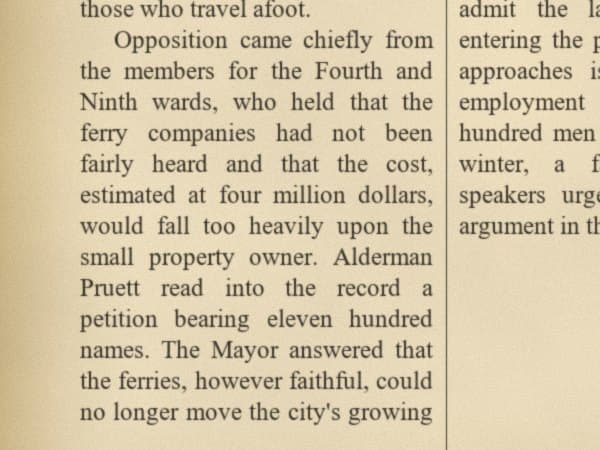
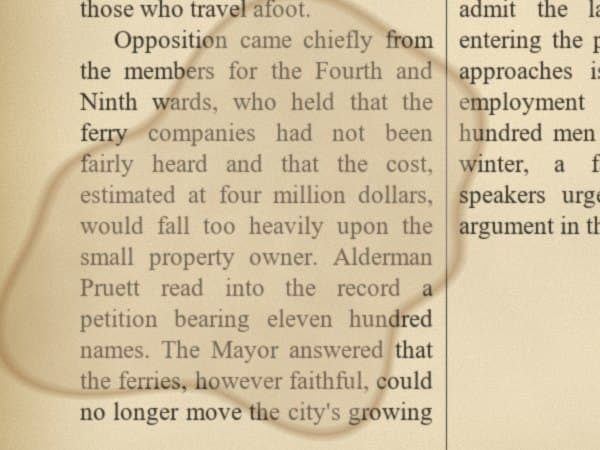
What happens when you press Restore
Every area goes through the same careful steps, so the repair blends into the page instead of standing out.
- 01
Crop with context
Each area is cut out with a margin of the surrounding page, so the AI can see the paper grain, the ink colour and the lines of text around the damage.
- 02
Repair from your instruction
The area type, your instruction and the strength guide the repair - remove the stain, fill the hole, sharpen the ink - and nothing more.
- 03
Align to the page
The result is lined up with the original, so text, column rules and borders continue exactly where they should.
- 04
Match the colour
Tone and brightness are matched to the untouched surroundings, so repaired paper is the same shade as the rest of the page.
- 05
Blend through a soft edge
The repair is laid back through a feathered mask of the exact shape you drew. Pixels outside the mark are never changed.
Areas are restored one after another, and each result builds on the last. You can compare every area with the original at any time and restore it again with a different instruction or strength.
Six tips for cleaner repairs
Small habits that make the restored areas indistinguishable from the rest of the page.
Mark a little beyond the damage
Include the faint edge of a stain or tide-line so nothing is left behind at the border.
One problem per area
Give a stain and a stamp their own marks and instructions - each is restored on its own.
Pick the shape that fits
A tight lasso or ellipse changes less of the page than a big rectangle round everything.
Scan at 300 DPI or more
More detail around the damage gives the AI more paper and type to match.
Start with Balanced
Step down to Gentle for originals that must look aged, up to Rebuild for missing parts.
Restore in passes
Areas build on each other. Restore the big damage first, then mark what is left.
Made for documents you can't replace
When only part of a page is damaged, only that part should change.
Flood & water damage
Lift tide-lines and water stains and bring washed-out ink back, area by area.
Old newspapers
Clear foxing and fold lines from front pages while the halftone photos stay untouched.
Family letters
Remove coffee rings and blots from letters, keeping every stroke of the handwriting.
Library & archive copies
Take out ownership stamps, accession numbers and pencil notes before publishing.
Office records
Remove hole punches, staple marks and filing notes from contracts and registers.
Books & manuscripts
Fill holes and rebuild torn corners on pages and plates without touching the text block.
Restoring documents you need to keep
A few habits used by archivists and family historians make restored copies easier to trust, share and reuse.
Keep the original scan untouched
Treat your first scan as the master. Restore a copy and store both side by side, so anyone can see what the page looked like before.
Restore for access, not to rewrite
Make the page readable and presentable. Leave marks that carry meaning - official stamps, notes, signatures - unless you have a reason to remove them.
Use the lightest strength that works
Gentle keeps the most of the original. Save Rebuild for places where something is truly missing, such as a torn-away corner.
Note what was changed
Keep a short record of the repairs, for example 'coffee ring removed, corner rebuilt'. It helps others trust and reuse the copy.
Export in the right format
PNG keeps every detail for archiving, JPG is lighter for sharing, and PDF brings multi-page documents back together.
Where a restored copy is used
A restored copy sits alongside the original. It is the version people read, print and share, while the untouched scan stays safe as the reference.
- Exhibition and display copies
- Family history books and albums
- Online collections and catalogues
- Reprints and anniversary editions
- Teaching and research materials
- Gifts and framed reproductions
Selective restoration questions
Selective restoration repairs only the parts of a document you choose. You draw around a stain, tear, blot or stamp, say what it needs, and the AI restores that area alone. The rest of the page is left exactly as it was scanned - no global filter, no bleached paper, no over-sharpened text.
Open the page in the AI Restore Studio, draw an ellipse round a coffee ring or a lasso along a water tide-line, choose the Restore type and tap 'Remove stain'. The stain is lifted and the text underneath is kept, with the paper tone matched to the untouched page around it.
Use the ellipse for round stains and seals, the lasso for irregular stains, tide-lines and torn edges, the brush for blots and scribbles (with the eraser to clean up the edge), and the rectangle for notes, lines of text and stamps. Auto-detect can also find damage, text, stamps, signatures and photos for you.
Restore repairs damage while keeping what is underneath - ideal for stains, foxing, folds and holes. Remove takes something out completely and rebuilds what it covered - notes, blots, stamps, tape marks. Inpaint simply fills a painted area from its surroundings and needs no instruction, which suits small blemishes on plain paper.
Yes. The AI works with the area plus the paper around it and a view of the whole page, then the result is aligned, colour-matched to the untouched surroundings and blended in through a feathered edge that follows the exact shape you drew. There is no visible patch or tone seam.
Yes. Lasso the missing area, choose Restore with 'Fill hole / tear' and the Rebuild strength. The paper, any column rules or borders and the lost letters are reconstructed from the surrounding page so the corner reads naturally again.
Up to 12 marked areas at a time. They are restored one after another, each on top of the result of the one before, so overlapping repairs build up cleanly. After restoring you can mark more areas and run again.
That is up to you. The Gentle strength makes the smallest change and keeps the aged character, Balanced removes the damage while keeping an authentic look, and Rebuild reconstructs the area as new. Paper outside your marks always keeps its original age and tone.
Keep exploring
Mark the damage. Keep everything else.
Open a page, draw around what needs work and restore it in minutes.